
My Studio
Limited BetaDesktop app for Windows
My Studio organizes your FL Studio workspaces and handles Track synchronization. Open a Track, work in FL Studio, and My Studio takes care of the rest.
Setup guide
From download to your first Track. It takes about five minutes. Go to the download.
Download from ma-music.studio
Open ma-music.studio/my-studio and choose Download for Windows. The installer is a single file named “My Studio Setup 0.2.2.exe”.
If you like, compare the file's SHA-256 with the one shown on the Download tab (the page shows the PowerShell command). Only download My Studio from ma-music.studio.
Run the installer
Open the downloaded file and follow the installer. If it asks who to install for, choosing just yourself doesn't need administrator access; installing for everyone on the computer asks Windows for administrator permission. Either works.
- Open the downloaded installer.
- Accept the default install location unless you have a reason to change it.
- Select Install, then Finish.
Windows SmartScreen: More info → Run anyway
This installer is not code-signed, so Microsoft has not verified its publisher and Windows doesn't recognize it. Windows may show “Windows protected your PC” (SmartScreen) the first time you run it. This is expected for an unsigned installer.
Only continue if you downloaded the file from ma-music.studio. You can confirm it's the right file by checking its SHA-256 on the Download tab.
- Select More info.
- Check the file name starts with “My Studio Setup” and the publisher shows as unknown.
- Select Run anyway.
This prompt is expected only while the installer is unsigned. If your company policy blocks “Run anyway”, ask your IT administrator.
Sign in the first time
Start My Studio and choose Sign in. Your browser opens so you can sign in to your MA Music account, then hands you back to the app. My Studio never sees your password, and it keeps your session in memory only — so you sign in again each time the app starts.
Connect FL Studio
The setup guide opens automatically the first time you sign in on a computer. My Studio looks for FL Studio on your computer automatically and shows what it found.
If it can't find FL Studio — or finds the wrong version — choose Browse and select FL64.exe, usually inside Program Files\Image-Line\FL Studio. You can switch back to the detected install any time in Preferences.
Choose what new Tracks start from
Pick one before you create your first Track. Nothing is chosen for you, and this only affects Tracks you create later — your existing Tracks never change.
- Blank Project — a clean, empty FL Studio project from My Studio.
- Use My Template — choose an FL Studio project (.flp) you've already set up. My Studio keeps its own copy, so you can move or rename the original.
Change it later in Preferences → New Track Template, or choose Run Setup Guide Again.
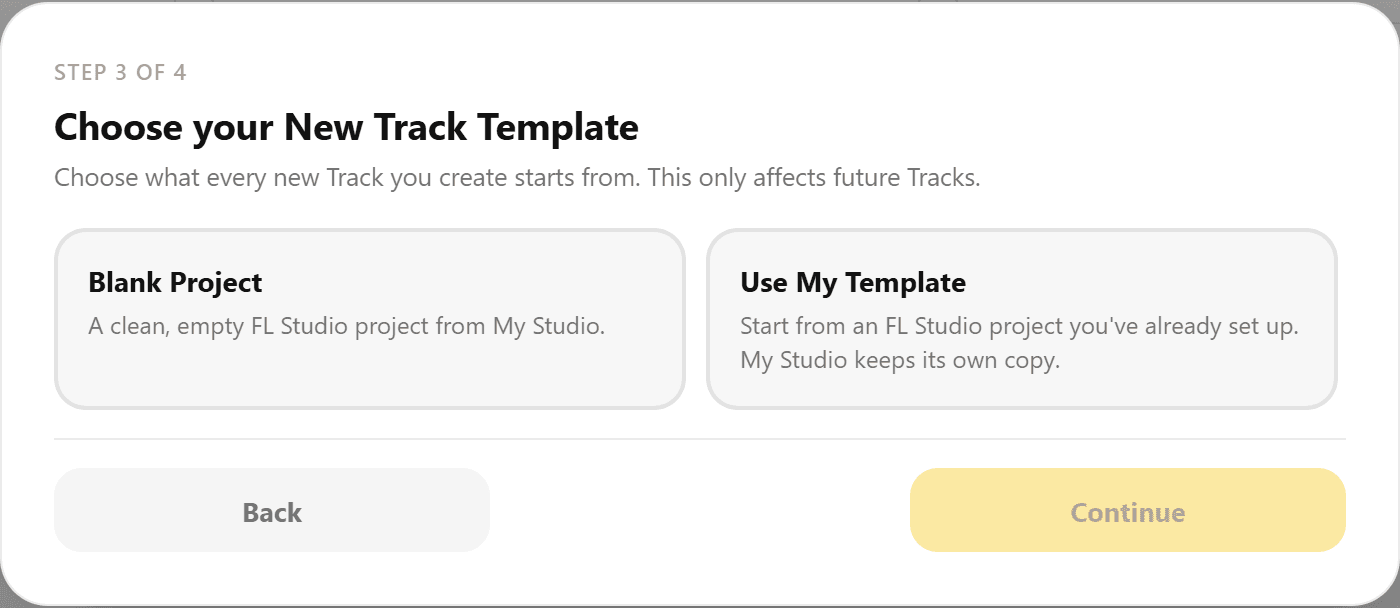
Nothing is chosen for you — pick Blank Project or Use My Template. Two FL Studio project settings My Studio needs
For a Track's audio and samples to stay with the Track, your template needs two FL Studio project options turned on:
- Store data relative to the project file
- Copy used samples to the project folder
My Studio checks these automatically for templates saved by FL Studio 26. If either is off it tells you which one and won't use that template. For other FL Studio versions it can't check, so you confirm you've turned them on and saved. To fix a template: open it in FL Studio, turn both options on, save with Save (not Save As), then choose the file again.
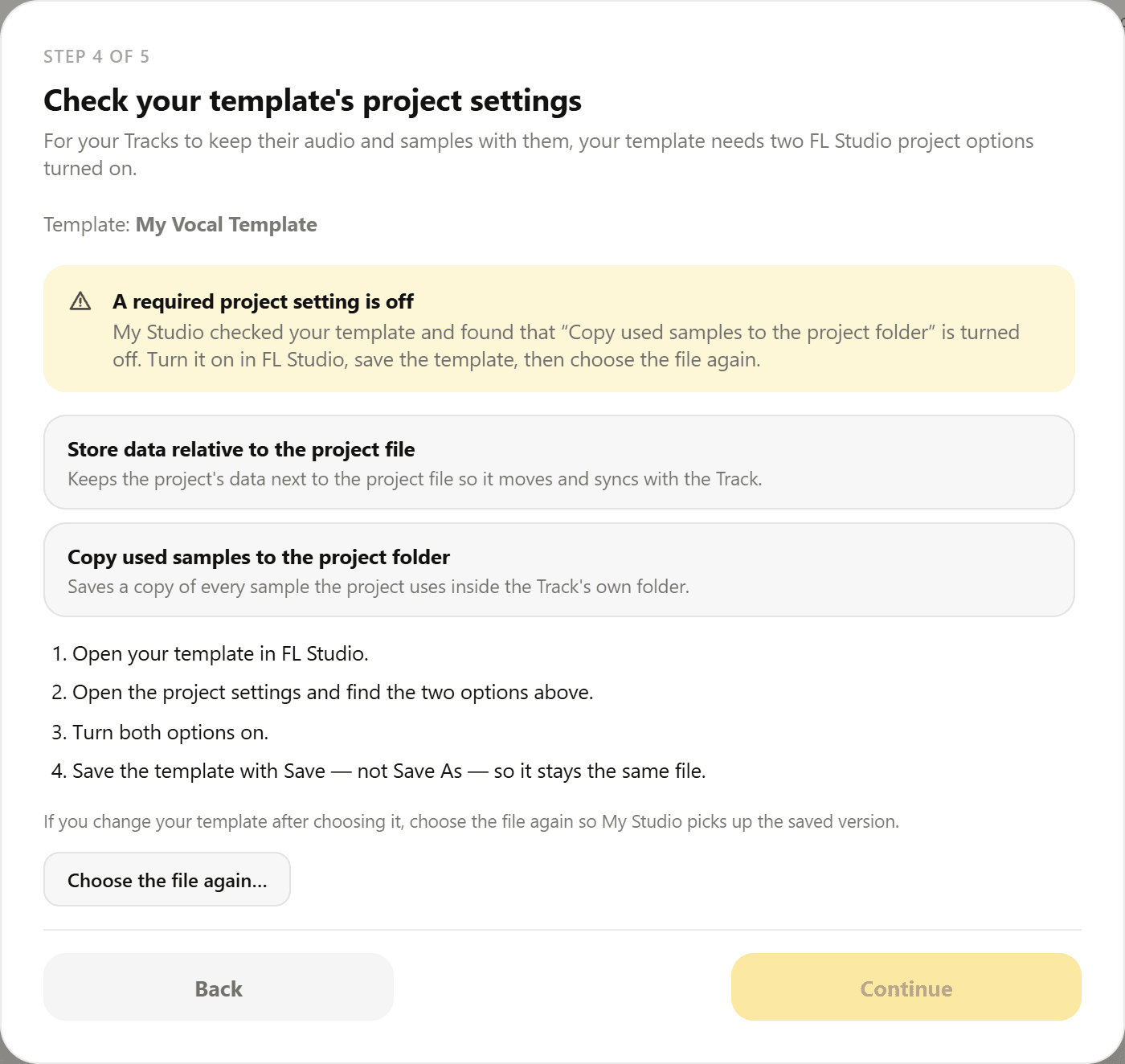
If a setting is off, My Studio names it and won't use that template until it's fixed. (Sample template name shown.) Create and resume Tracks
Create a Track or choose Resume Work and My Studio opens the Track's project in FL Studio. Your project lives in that Track's folder on this computer.
In FL Studio, use Save — not Save As — so your work stays in the Track.
What happens when you close FL Studio
When you close FL Studio, My Studio saves your project file to your MA Music account as a new revision. Wait for it to finish before signing out or switching computers. If the cloud and your computer both changed, nothing is overwritten: you choose what to keep, and your version is saved as a named copy first.
Use each Track from one computer. Opening the same Track on two computers isn't supported in this beta.
Troubleshooting
- The installer says the publisher is unknown.
- That's expected while the installer is unsigned. Make sure you downloaded it from ma-music.studio, compare its SHA-256 with the Download tab, then use More info → Run anyway.
- My Studio can't find FL Studio.
- Choose Browse in the setup guide (or Preferences → FL Studio) and select FL64.exe from your FL Studio install folder.
- My template was rejected.
- My Studio names the problem: not an FL Studio project, or one of the two project settings is off. Fix it in FL Studio, save the template, and choose it again.
- I need a different template for new Tracks.
- Preferences → New Track Template → Change Template, or Use Blank Project. Existing Tracks aren't affected.
Still stuck? Contact MA Music.